React Native
Overview
Getting started for apps that are built with React Native.
If you're using Expo along with Continuous Native Generation (CNG) and Prebuild, you should follow the Expo docs instead.
Installation
-
React Native version >=0.79 is supported. If you're on an older version and run in to any issues, please reach out to your Movable Ink client experience team.
-
Install the SDK
-
The minimum iOS version supported is 13. Make sure to update your
min_ios_version_supportedin your Podfile if it's below 13; then install pods. -
Import RNMovableInk in your project:
Android Setup
Android Deeplinking
You can follow the instructions on the Android Deeplinking article to learn more.
You can also read more on React Native's Deeplinking documentation page.
Android Behavior Events
If you want to use the Behavior Events features of the SDK, you'll need an API Key to enable Behavior Events for your app. If you don't already have one, please reach out to your Movable Ink client experience team at MovableInk with your applications bundle identifier (both Android and iOS).
Open local.properties file, found at android > local.properties
Within the application's local.properties, the provided API Key should be specified as follows:
Also, in the application manifest file the following meta-data tag should be specified within the application tag:
<meta-data
  android:name="com.movableink.inked.API_KEY"
  android:value="${MOVABLE_INK_SDK_API_KEY}"
/>
Lastly, in the Application level gradle file, under the defaultConfig section:
defaultConfig {
    ....
    manifestPlaceholders["MOVABLE_INK_SDK_API_KEY"] = localProperties['MOVABLE_INK_SDK_API_KEY']
    ....
}
Configuring the SDK Region
To ensure compliance with regional requirements , we now require you to specify your region(importantly for EU clients). This is necessary to properly route your data and comply with local regulations.
In your project’s build.gradle (or build.gradle.kts) file, define a gradle property to your project’s defaultConfig block to specify the region:
defaultConfig {
   // Existing configurations...

   // Set your region (default is US, set EU for European clients)
   buildConfigField("String", "MOVABLE_INK_SDK_REGION", "EU")

}
If you don't supply a region, the SDK will default to the US region. If you are unsure which region your company was setup in on the MovableInk Platform, please reach out to your Movable Ink client experience team.
After making changes to the gradle file, perform a gradle sync.
iOS Setup
Open Xcode and open your projects xcworkspace:
File > Open > project/ios/*/*.xcworkspace
In your Info.plist, add the movable_ink_universal_link_domains key as an array containing all the domains that you'd like the MovableInk SDK to handle. Note: These should only be domains that are shown in your Creative Tags, such as mi.example.com:
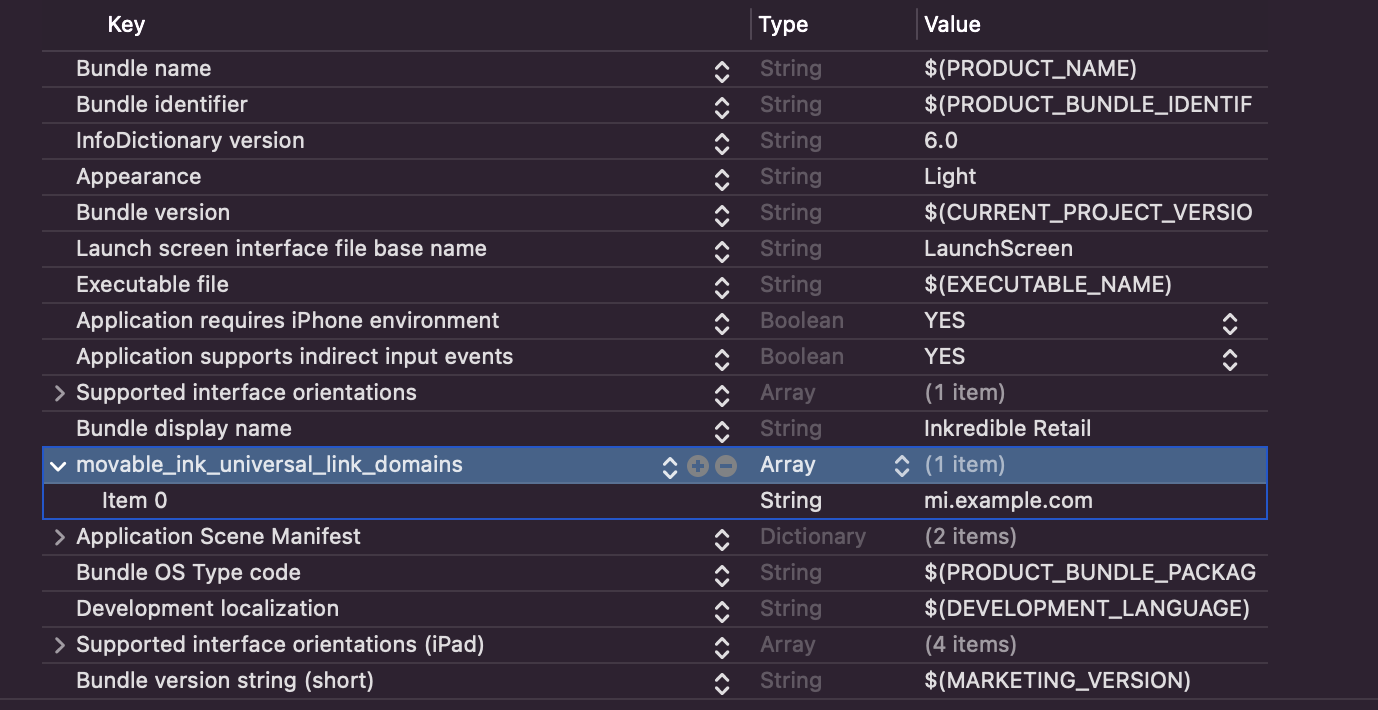
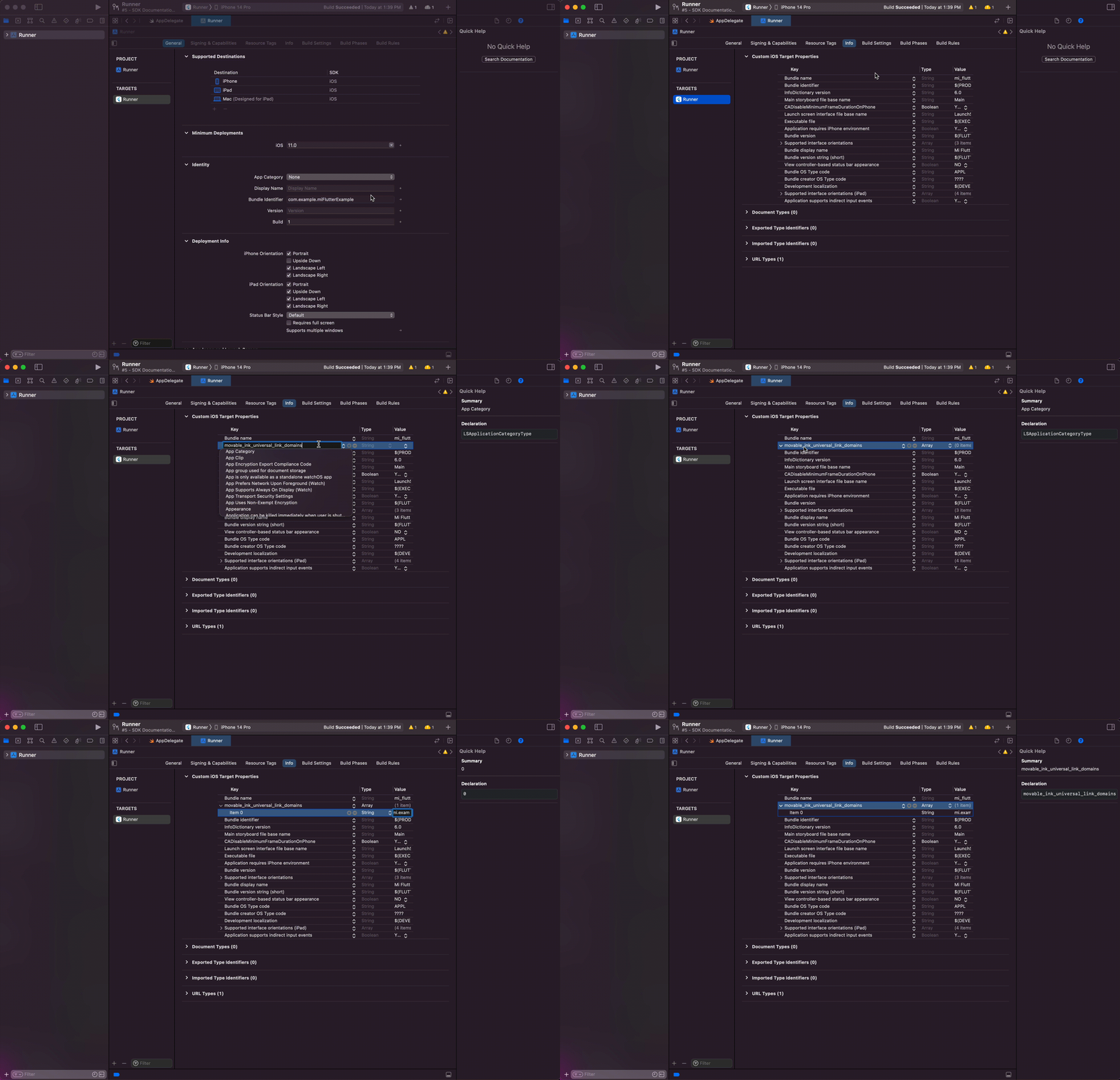
You can also edit the Info.plist in the Project Settings.
Navigate to the Project Settings, then to the Info tab.
Here, you can add the movable_ink_universal_link_domains key as an array:
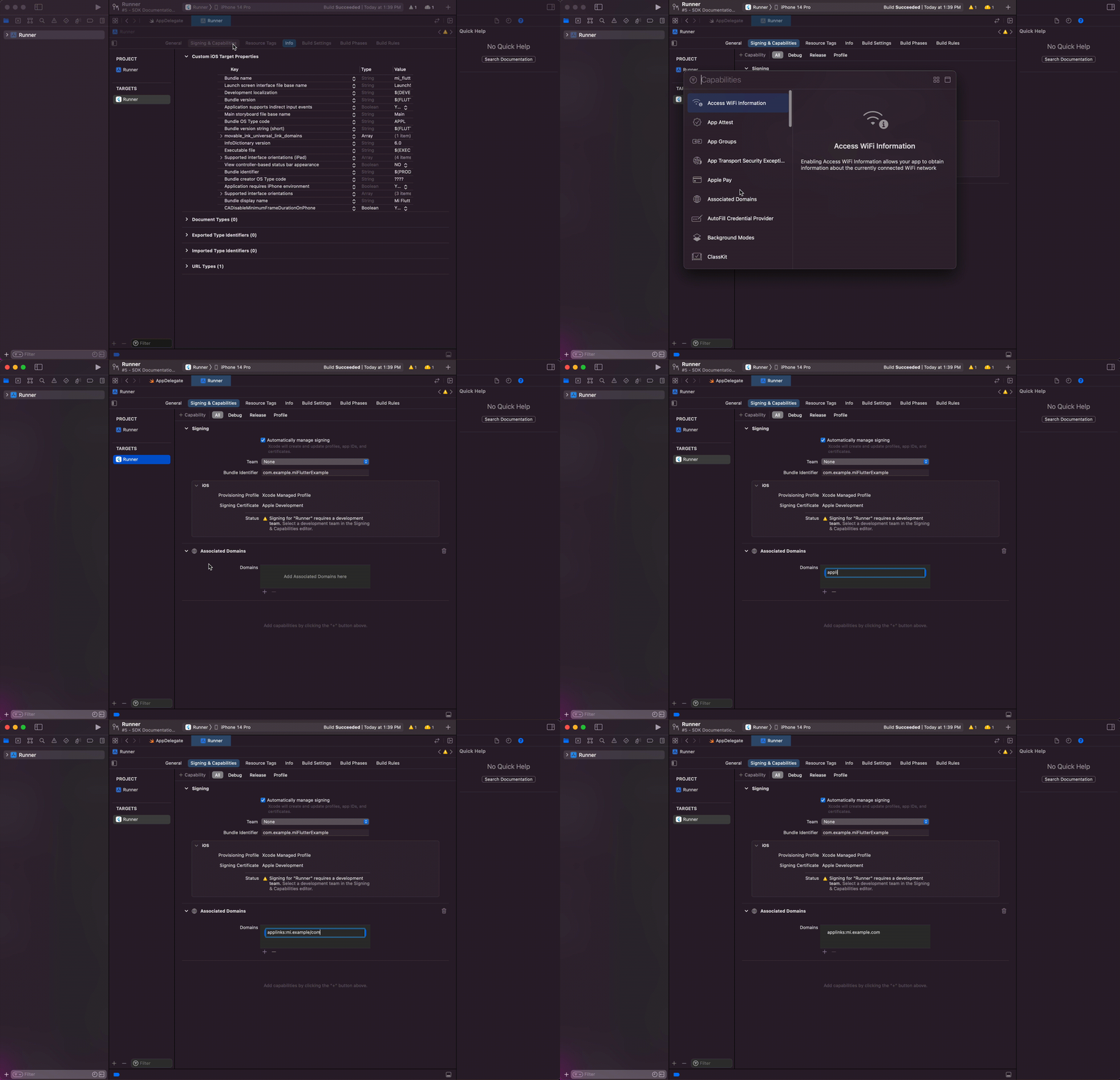
Under the Signing & Capabilities tab, add the Associated Domains Capability, then add the applinks that you can support. These should include the same domains as the ones in the movable_ink_universal_link_domains in the step before.
For example, if your MovableInk Domain is mi.example.com, you'd want to add
applinks:mi.example.com.
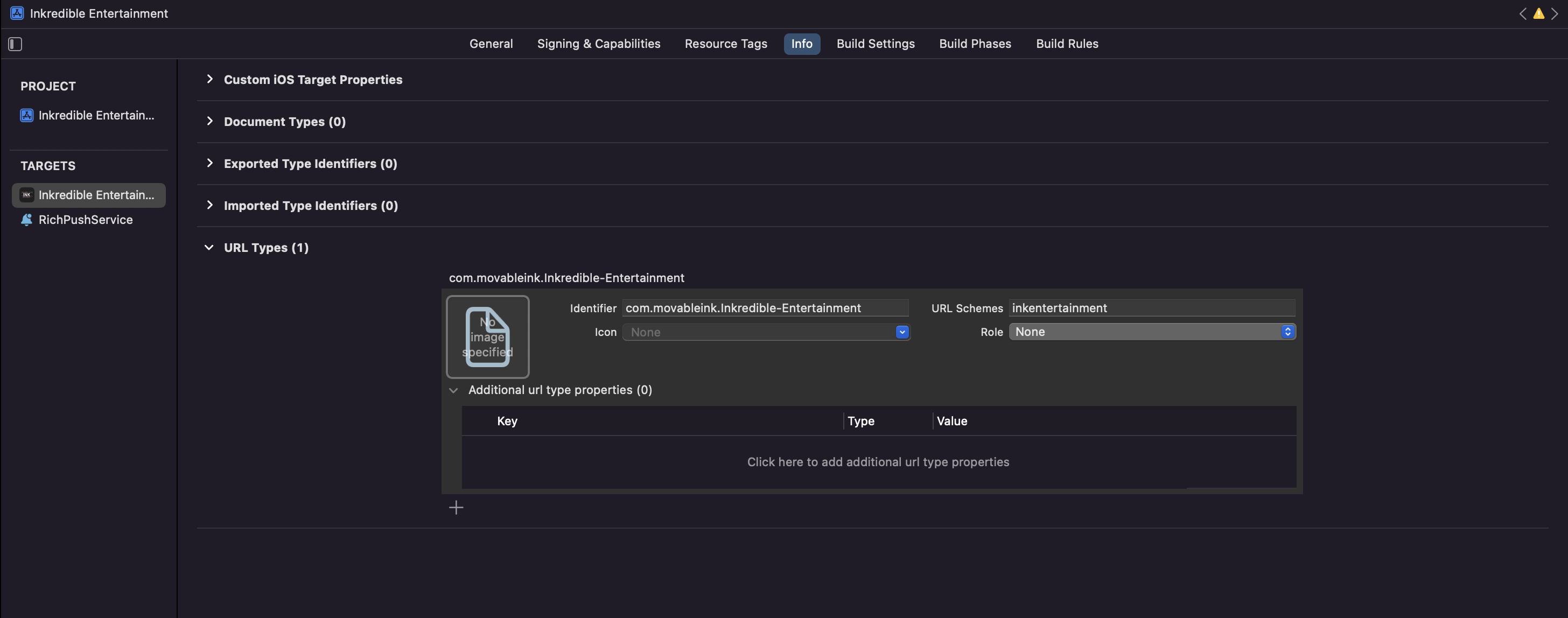
If you want to deeplink to your app via a custom scheme, such as myapp://products/1, you'll need to register this custom scheme in your info plist.
iOS Deeplinking
You can read how to enable Deeplinking on iOS from React Native's Deeplinking documentation page; here's the gist:
Open the AppDelegate.mm file, import RCTLinkingManager from React, and implement the openURL and continueUserActivityMethods like below:
#import <React/RCTLinkingManager.h>

@implementation AppDelegate

- (BOOL)application:(UIApplication *)app
    openURL:(NSURL *)url
    options:(NSDictionary<UIApplicationOpenURLOptionsKey,id> *)options  {
  return [RCTLinkingManager application:app openURL:url options:options];
}

- (BOOL)application:(UIApplication *)application
    continueUserActivity:(NSUserActivity *)userActivity
    restorationHandler:(void (^)(NSArray<id<UIUserActivityRestoring>> * _Nullable))restorationHandler {
  return [RCTLinkingManager application:application
                   continueUserActivity:userActivity
                     restorationHandler:restorationHandler];
}


@end
iOS Behavior Events
You'll need an API Key to enable Behavior Events for your app. If you don't already have one, please reach out to your Movable Ink client experience team at MovableInk with your applications bundle identifier.
Once you have an API Key, you can add two key/value pair in your applications Info.plist, movable_ink_api_key and movable_ink_region.
movable_ink_region must be one of following:
- us
- eu
<key>movable_ink_api_key</key>
  <string>YOUR_API_KEY</string>
<key>movable_ink_region</key>
  <string>eu</string>
If you don't supply a region, the SDK will default to the US region. If you are unsure which region your company was setup in on the MovableInk Platform, please reach out to your Movable Ink client experience team.
For detailed information on specific features, please refer to the following sections:
Studio:
- Deeplinking - Learn how to handle MovableInk deeplinks in your React Native app
- Behavior Events - Track user behavior and interactions
- In App Message - Display interactive HTML-based in-app messages
DaVinci:
- Push Notifications - Handle push notification events
- Behavior Events - Track DaVinci-enabled behavior events
SDK Size
The MovableInk SDK adds approximately 0.5 MB to the compressed app size and 1.8 MB to the uncompressed app size. The "compressed app size" refers to the size of the app when it is packaged and compressed for distribution, such as when it is downloaded. Once downloaded, the app is decompressed and installed on the user's device. The uncompressed size is what actually occupies space on the device.