Deeplinking
Setup
Android Setup
You can follow the instructions on the Android Deeplinking article.
If you're on Flutter v3.27.0 or above, you'll also want to reset the flutter_deeplinking_enabled option to false within your AndroidManifest.xml file. You can read me about this here.
<manifest>
  <application>
    <activity>
      <meta-data android:name="flutter_deeplinking_enabled" android:value="false" />
    </activity>
  </application>
</manifest>
iOS Setup
Open Xcode and open your projects xcworkspace:
File > Open > project/ios/Runner.xcworkspace
In the Info.plist, add the movable_ink_universal_link_domains key as an array containing all the domains that you'd like the MovableInk SDK to handle. Note: These should only be domains that are shown in your Creative Tags, such as mi.example.com.
If you're on Flutter v3.27.0 or above, you'll also want to reset FlutterDeepLinkingEnabled option to false. You can read me about this here.
<key>movable_ink_universal_link_domains</key>
<array>
  <string>mi.example.com</string>
</array>
<key>FlutterDeepLinkingEnabled</key>
<false/>
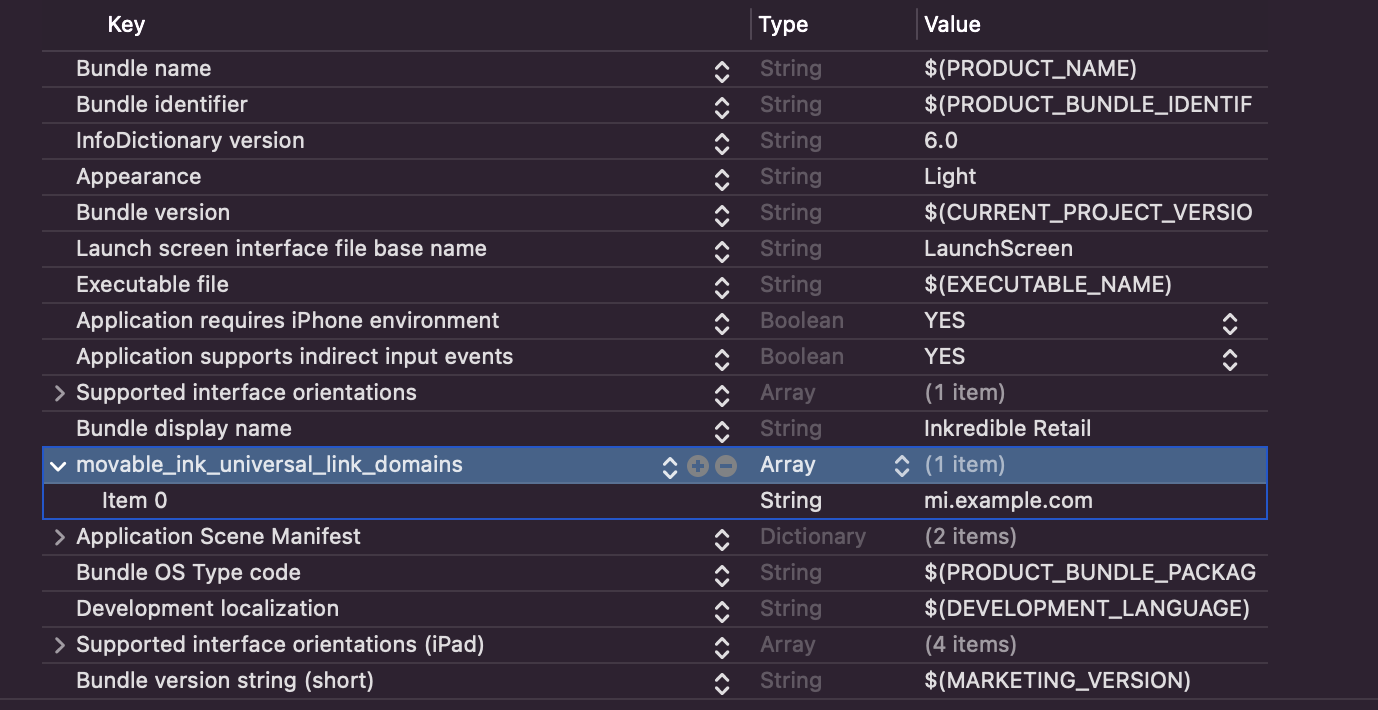
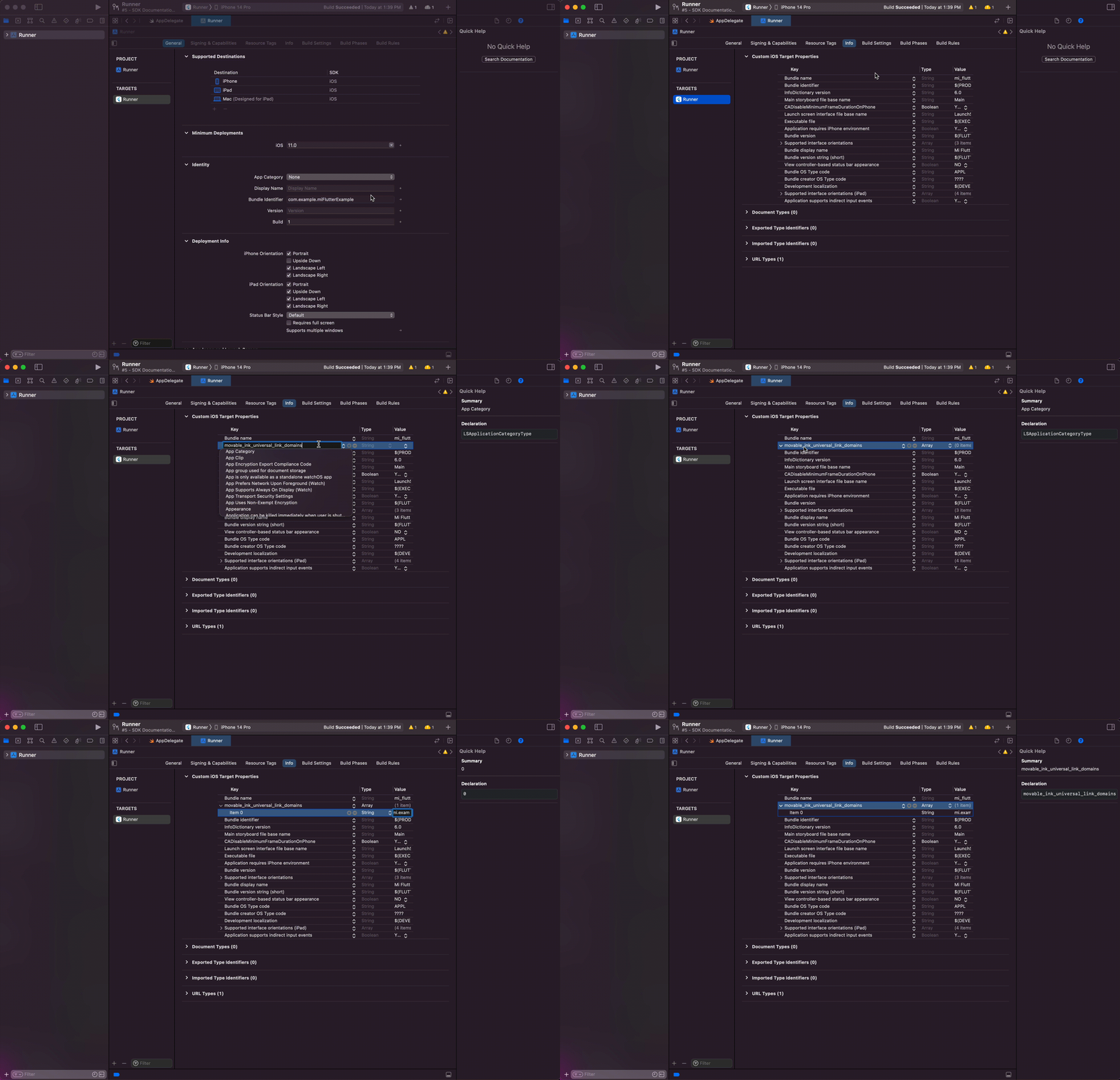
You can also edit the Info.plist in the Project Settings.
Navigate to the Project Settings, then to the Info tab.
Here, you can add the movable_ink_universal_link_domains key as an array:
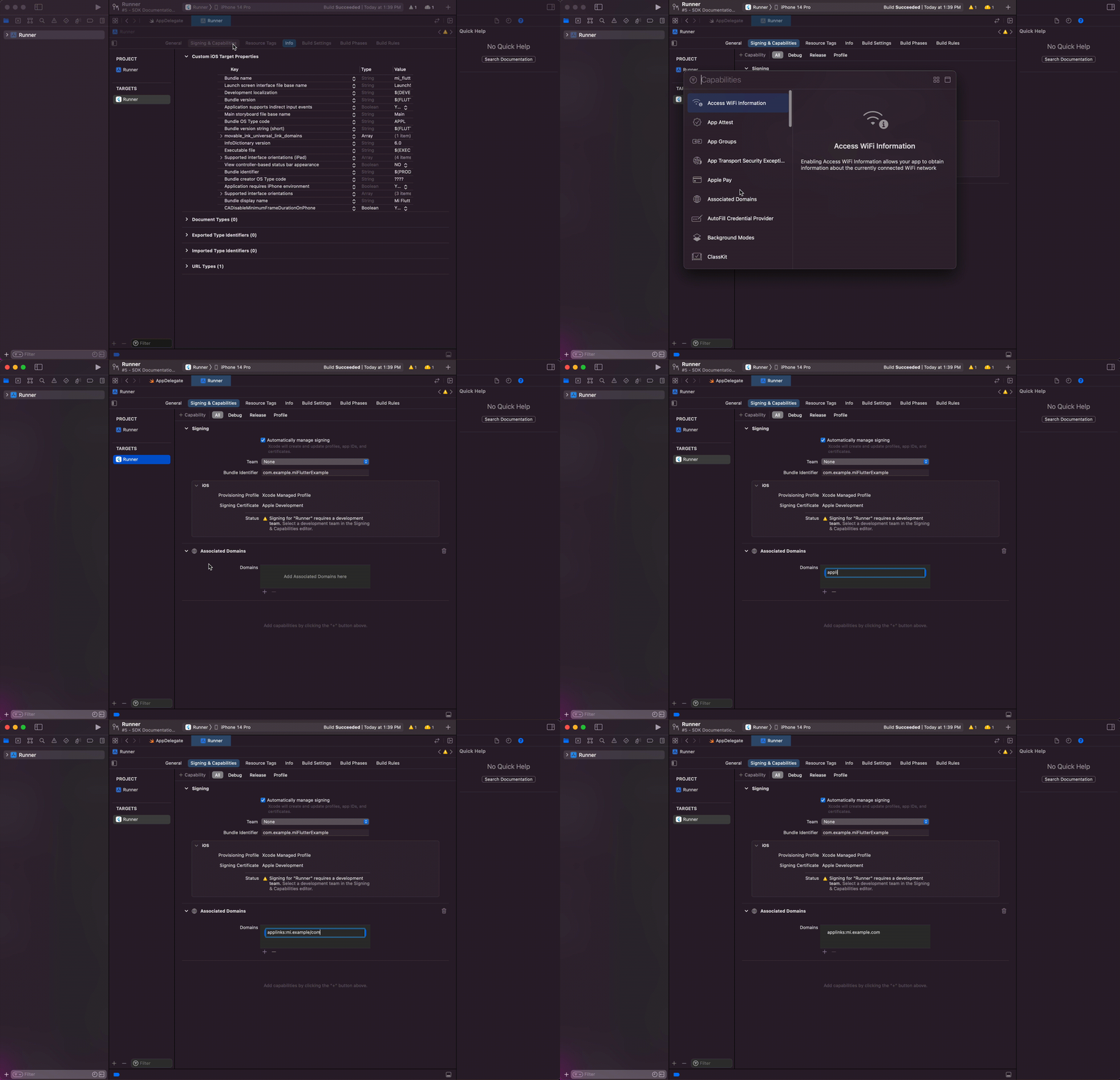
Under the Signing & Capabilities tab, add the Associated Domains Capability, then add the applinks that you can support. These should include the same domains as the ones in the movable_ink_universal_link_domains in the step before.
For example, if your MovableInk Domain is mi.example.com, you'd want to add
applinks:mi.example.com.
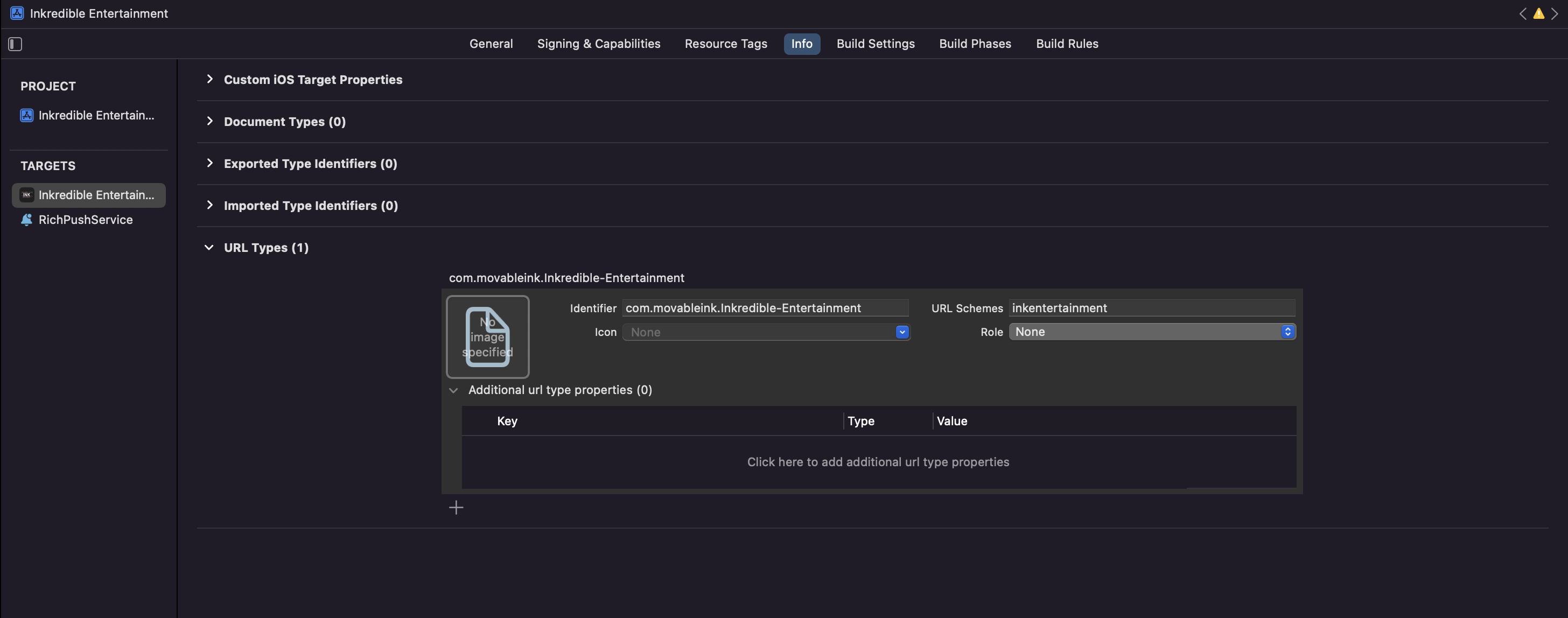
If you want to deeplink to your app via a custom scheme, such as myapp://products/1, you'll need to register this custom scheme in your info plist.
Automatic Link Resolution
You can be notified of an incoming deeplink that MovableInk resolves by listening to the Stream.
MovableInkPlugin.start() returns a Stream<String> that will be called anytime MovableInk is able to resolve an incoming deeplink.
The data will be the clickthrough URL for the link that opened the app.
import 'dart:async';
import 'package:flutter/material.dart';
import 'package:flutter/services.dart';
import 'package:movable_ink_plugin/movable_ink_plugin.dart';

class _MyHomePageState extends State<MyHomePage> {
  final _movableInkPlugin = MovableInkPlugin();
  String _resolvedURL = '';
  StreamSubscription<String>? streamSubscription;

  @override
  void initState() {
    super.initState();

    initMovableInkListener();
  }

  @override
  void dispose() {
    super.dispose();

    streamSubscription?.cancel();
  }

  // Starts listening to the MovableInkPlugins event when it resolves an
  // incoming deeplink into the clickthrough link
  void initMovableInkListener() async {
    streamSubscription = _movableInkPlugin.start().listen((String data) {
      // Save the resolved url into state and update your UI to show the
      // corresponding page
      setState(() {
        _resolvedURL = data;
      });
    }, onError: (error) {
      debugPrint('error: ${error.toString()}');
    });
  }
}
Manual Link Resolution
You can also manually resolve a URL into a clickthrough link if need be. This will ask MovableInk to attempt to resolve a URL into a clickthrough link.
void resolveUrl(String url) {
  _movableInkPlugin.resolveUrl(url).then((value) {
    setState(() {
      _resolvedURL = value ?? '';
    });
  });
}
Last Resolved URL
If you received an incoming deeplink and MovableInk resolved it, but you weren't ready to handle it, say you showed a login screen first, you can call lastResolvedURL to fetch the last url MovableInk resolved.
Note
You should try to handle this yourself if possible by handling the storing the resolved link from the stream and passing it to the needed views. If for some reason the resolution occurs after you read the value of this method, you could miss the deeplink.
The stream given via start will always be called after resolution occurs and is much safer to depend on.
Deferred Deeplinking
When a user attempts to open a MovableInk Link that is designated as a deferred deeplink on an iOS device, and they don't already have your app installed, MovableInk will enable Deferred Deeplinking. Instead of being directed to your website experience, they will be shown a page to open the App Store to download your app.
Once downloaded, MovableInk can check the pasteboard for the original link and allow you to open that location inside your app instead.
Before you can use Deferred Deeplinking, you'll need to setup the sdk_install event schema.
You can read more about integrating Deferred Deeplinking here.
After you've setup Deferred Deeplinking, you'll need to enable the app install event:
Open the AppDelegate.swift file, import MovableInk and enable the app install event.
import UIKit
import Flutter
import MovableInk

@UIApplicationMain
@objc class AppDelegate: FlutterAppDelegate {
  override func application(
    _ application: UIApplication,
    didFinishLaunchingWithOptions launchOptions: [UIApplication.LaunchOptionsKey: Any]?
  ) -> Bool {
    ...

    MIClient.appInstallEventEnabled = true

    return super.application(application, didFinishLaunchingWithOptions: launchOptions)
  }
}
MIClient.appInstallEventEnabled(true)
Now check the pasteboard. Make sure to only call this after you've called start and setup the stream subscription.
Warning
If this is ran on iOS 16+, this will prompt the user for permission to read from the pasteboard.